
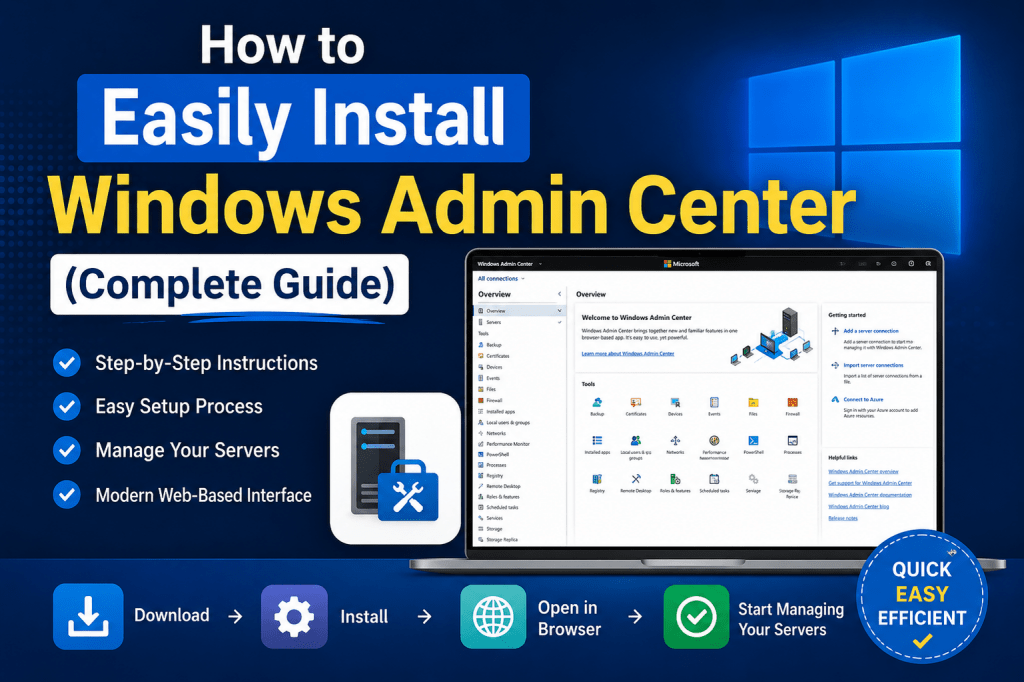
Windows Admin Center is a modern, browser-based management tool designed to simplify the administration of Windows environments. It allows administrators to manage servers, client machines, clusters, and infrastructure from a centralized interface without relying on multiple traditional tools. Instead of switching between different consoles and utilities, administrators can perform a wide range of tasks through a single, unified dashboard. This improves efficiency, reduces complexity, and provides better visibility into system operations.
The tool is especially valuable in environments where multiple systems need to be monitored and maintained regularly. By offering remote management capabilities, it eliminates the need to log in directly to each machine. This makes it ideal for both small-scale deployments and enterprise-level infrastructures where centralized control is essential.
Windows Admin Center operates through a web interface, meaning it can be accessed using a browser without requiring complex client installations on every device. This design choice reflects modern IT practices where accessibility, flexibility, and ease of use are prioritized. It also integrates well with existing Windows tools, enhancing rather than replacing traditional management methods.
Purpose and Importance of Windows Admin Center
The primary purpose of Windows Admin Center is to streamline administrative tasks across Windows environments. Traditionally, system administrators relied on multiple tools such as Server Manager, Microsoft Management Console, and various PowerShell scripts. While these tools are still useful, managing them separately can be time-consuming and inefficient. Windows Admin Center brings these capabilities together into one platform.
This centralized approach significantly reduces administrative overhead. Tasks such as monitoring performance, configuring settings, managing updates, and troubleshooting issues can all be performed from a single interface. This not only saves time but also minimizes the chances of errors caused by switching between different tools.
Another key benefit is improved remote management. Administrators can connect to servers and workstations from virtually anywhere, provided they have network access and proper credentials. This is particularly important in modern work environments where remote and hybrid setups are common. The ability to manage systems without being physically present increases productivity and ensures faster response times to issues.
Security is also enhanced through centralized control. Administrators can apply policies, monitor activity, and manage user access more effectively. By having a single point of management, it becomes easier to enforce compliance and maintain system integrity across the entire infrastructure.
Understanding the Web-Based Interface
One of the defining features of Windows Admin Center is its web-based interface. Unlike traditional tools that require installation on every management machine, this tool runs on a local server and is accessed through a browser. This means administrators can use it from different devices without needing additional software installations.
The interface is designed to be intuitive and user-friendly. It presents information in a clear and organized manner, making it easier to navigate through different management options. Dashboards provide an overview of system health, performance metrics, and alerts, allowing administrators to quickly assess the status of their environment.
Because it is browser-based, the tool supports modern web technologies, which enhance performance and responsiveness. This ensures that administrators can perform tasks efficiently without experiencing delays or interruptions. The interface also adapts well to different screen sizes, making it usable on various devices, including laptops and tablets.
Another advantage of the web-based approach is simplified updates. Since the application runs on a central host, updates only need to be applied once rather than on multiple machines. This reduces maintenance efforts and ensures that all users are working with the latest version of the tool.
Supported Systems and Compatibility
Windows Admin Center is designed to work with a wide range of Windows operating systems. It supports multiple versions of Windows Server as well as client operating systems. This broad compatibility makes it a versatile tool that can be used in diverse environments.
Administrators managing modern server environments can take full advantage of its capabilities, as it is optimized for newer systems. However, it also maintains compatibility with older versions, ensuring that organizations with legacy infrastructure can still benefit from its features. This flexibility is important for businesses that are gradually transitioning to newer technologies while still maintaining older systems.
In addition to traditional Windows environments, the tool also supports hybrid scenarios. It can be used to manage systems that are integrated with cloud services, providing a seamless experience across on-premises and cloud-based resources. This makes it particularly useful for organizations adopting hybrid IT strategies.
The ability to manage both servers and client machines from a single interface further enhances its usefulness. Administrators do not need separate tools for different types of systems, which simplifies workflows and improves overall efficiency.
Cost and Accessibility
One of the most appealing aspects of Windows Admin Center is that it is available at no cost. This makes it accessible to organizations of all sizes, from small businesses to large enterprises. By providing a powerful management tool without additional licensing fees, it reduces the financial burden associated with IT management solutions.
Although the tool itself is free, it is important to understand that it works within the broader Windows ecosystem. Organizations may still need valid licenses for the operating systems they are managing. However, the absence of additional costs for the management tool itself makes it an attractive option for many users.
Accessibility is another key advantage. Since the tool is web-based, it can be accessed from different devices without requiring extensive setup. Administrators only need a supported browser and network connectivity to start managing their systems. This ease of access contributes to increased productivity and flexibility.
The straightforward installation process also ensures that users can get started quickly. Even those with limited experience in system administration can install and begin using the tool with minimal difficulty. This lowers the barrier to entry and makes it easier for organizations to adopt modern management practices.
Preparing for Installation
Before installing Windows Admin Center, it is important to ensure that the system meets the necessary requirements. Proper preparation helps avoid potential issues during installation and ensures that the tool functions correctly once it is set up.
The first step is to verify that the operating system is supported. Since the tool is designed to work with specific versions of Windows, using a compatible system is essential. Running it on an unsupported system may lead to errors or limited functionality.
Next, administrators should check network configurations. Because the tool operates through a web interface, proper network settings are required to allow access. This includes ensuring that the necessary ports are available and not blocked by firewalls. Configuring these settings in advance helps prevent connectivity issues later.
User permissions are another important consideration. Installing and running the tool requires administrative privileges. Ensuring that the appropriate permissions are in place will allow the installation process to proceed smoothly.
It is also advisable to plan where the tool will be installed. Since it acts as a central management point, choosing the right host machine is important. The selected system should be reliable, secure, and accessible to all intended users.
Downloading the Installer
The installation process begins with obtaining the installer package. This is typically provided as an installation file that can be downloaded to the local system. Once downloaded, it serves as the starting point for setting up the tool.
After initiating the download, the file is usually saved in a default directory on the system. Administrators should locate this file before proceeding with the installation. If the default location has been changed, it may be necessary to search for the file manually.
Ensuring the integrity of the downloaded file is also important. Verifying that the download was completed successfully and without corruption helps avoid issues during installation. In some cases, administrators may also check file properties to confirm authenticity.
Having the installer readily accessible simplifies the next steps in the process. Once the file is located, the installation can begin without delays. Proper organization and preparation at this stage contribute to a smoother overall experience.
Launching the Installation Process
To start the installation, the installer file must be executed. This is typically done by double-clicking the file, which launches the setup wizard. The wizard guides the user through the installation process with a series of prompts and options.
The installation interface is designed to be straightforward, allowing users to proceed step by step. Most of the options presented during setup are self-explanatory, making it easy to follow along even for those with limited experience. In many cases, the default settings are sufficient, allowing the installation to proceed without extensive customization.
However, it is still important to review each option carefully. Some settings may have implications for system behavior, security, and updates. Taking the time to understand these options ensures that the tool is configured according to the organization’s needs.
As the installation progresses, the wizard will copy files, configure components, and set up the necessary services. This process may take a few minutes, depending on the system’s performance. Once completed, the tool will be ready for initial configuration and use.
Key Installation Options to Consider
During the installation process, several options may require attention. One of these involves diagnostic data. Users may be asked whether they want to share diagnostic information. This decision should be made based on organizational policies and data sensitivity considerations.
Another important option relates to system updates. Enabling automatic updates can help keep the tool up to date with the latest features and security improvements. However, some organizations prefer to manage updates manually to maintain control over their environment.
The installation also includes setting up a web server component. This is a core part of how the tool operates, as it provides the web-based interface used for management. Understanding this component is important, as it affects how the tool is accessed and used.
Carefully reviewing these options ensures that the installation aligns with organizational requirements. Making informed choices at this stage helps create a stable and secure management environment.
Completing the Installation Setup
Once the installation process is finished, the setup wizard will provide information needed to access the tool. This typically includes a web address that can be used to open the interface in a browser. Keeping this information accessible is important for future use.
The first time the tool is accessed, additional configuration steps may be required. These steps help finalize the setup and prepare the tool for managing systems. Administrators may need to configure settings such as authentication, connections, and permissions.
After completing these initial configurations, the tool becomes fully operational. Administrators can begin adding systems, monitoring performance, and performing management tasks. The interface provides a comprehensive set of features that support various administrative functions.
At this point, the installation process is complete, and the foundation is set for effective system management. The next steps involve exploring the features and capabilities of the tool to maximize its potential.
Accessing Windows Admin Center After Installation
After completing the installation, the next step is accessing Windows Admin Center through a web browser. The setup process provides a specific web address that allows administrators to open the interface. This address is typically associated with the machine where the tool was installed, and it can be accessed locally or remotely depending on configuration.
When entering the address into a browser, the Windows Admin Center dashboard loads, presenting a clean and structured interface. This dashboard acts as the central hub for all management activities. From here, administrators can begin connecting to servers, viewing system information, and performing administrative tasks.
The first login may prompt for credentials. It is important to use an account with sufficient administrative privileges to ensure full access to all features. Without proper permissions, certain functions may be restricted or unavailable. This step ensures that only authorized users can manage systems, maintaining security across the environment.
Accessing the interface successfully confirms that the installation was completed correctly and that the web server component is functioning as expected. It also marks the transition from setup to active usage, where administrators can begin exploring the tool’s capabilities.
Understanding the Dashboard Layout
The dashboard is the core interface of Windows Admin Center, designed to provide a comprehensive overview of managed systems. It displays connected devices, system health, and quick access to various management tools. The layout is structured to ensure that important information is easy to find and understand.
On the main screen, administrators can see a list of connections. These connections represent the servers, workstations, or clusters being managed. Each connection provides basic details such as system status, performance metrics, and alerts. This allows administrators to quickly identify any issues that require attention.
Navigation within the dashboard is straightforward. A menu system provides access to different tools and features, enabling users to switch between tasks without confusion. The interface is designed to minimize complexity, making it easier for administrators to perform their duties efficiently.
Customization options are also available, allowing users to tailor the dashboard to their needs. By organizing connections and adjusting views, administrators can create a workspace that aligns with their workflow. This flexibility enhances productivity and ensures that the most relevant information is always accessible.
Adding and Managing Connections
One of the first tasks after accessing Windows Admin Center is adding connections. A connection represents a system that will be managed through the interface. This could be a server, a personal computer, or a cluster of machines.
To add a connection, administrators provide the necessary details such as the system name or IP address. Authentication credentials are also required to establish a secure connection. Once added, the system appears in the dashboard and becomes accessible for management tasks.
Managing connections involves organizing and maintaining the list of systems. Administrators can group related systems together, making it easier to manage large environments. For example, servers performing similar roles can be placed in the same group for quick access.
Connections can also be updated or removed as needed. If a system is decommissioned or no longer requires management, it can be removed from the list. Keeping connections organized ensures that the dashboard remains clean and easy to navigate.
This feature highlights the flexibility of Windows Admin Center, as it allows administrators to manage multiple systems from a single interface without unnecessary complexity.
Exploring System Management Tools
Windows Admin Center provides a wide range of tools for managing systems. These tools are integrated into the interface, allowing administrators to perform tasks without switching to external applications. This integration is one of the key strengths of the platform.
Common management tasks include monitoring system performance, managing storage, configuring networking, and handling user accounts. Each of these functions is accessible through dedicated sections within the interface. By selecting a connection, administrators can access detailed information and controls specific to that system.
Performance monitoring tools provide real-time insights into system activity. Metrics such as CPU usage, memory consumption, and disk performance are displayed in an easy-to-understand format. This helps administrators identify bottlenecks and optimize system performance.
Storage management tools allow administrators to view and configure disks, volumes, and file systems. Tasks such as creating new volumes, resizing partitions, and monitoring storage usage can be performed directly from the interface.
Networking tools provide visibility into network configurations and connectivity. Administrators can view IP settings, manage network adapters, and troubleshoot connectivity issues. This centralized access to networking features simplifies the management process.
Working with Roles and Permissions
Security is a critical aspect of system administration, and Windows Admin Center provides features to manage roles and permissions effectively. By controlling access to the tool, organizations can ensure that only authorized users can perform administrative tasks.
User accounts can be assigned different levels of access based on their responsibilities. For example, some users may have full administrative privileges, while others may only have read-only access. This role-based approach helps maintain control over system management activities.
Permissions can also be configured for specific connections. This allows administrators to restrict access to certain systems or functions. By implementing these controls, organizations can reduce the risk of unauthorized changes and maintain a secure environment.
Auditing and monitoring features further enhance security. Administrators can track activity within the tool, ensuring accountability and transparency. This is particularly important in environments where compliance and regulatory requirements must be met.
Integrating with Existing Tools and Technologies
Windows Admin Center is designed to complement existing management tools rather than replace them entirely. It integrates with various Windows components, providing a seamless experience for administrators.
One of the key integrations is with PowerShell. Many tasks performed through the interface are powered by underlying PowerShell commands. This allows advanced users to leverage scripting capabilities while still benefiting from the graphical interface. It also ensures that the tool remains flexible and adaptable to different use cases.
Integration with traditional tools such as Server Manager and other administrative utilities ensures continuity. Administrators familiar with these tools can transition to Windows Admin Center without losing functionality. This compatibility makes adoption easier and reduces the learning curve.
The tool also supports hybrid environments, allowing administrators to manage systems that are connected to cloud services. This integration provides a unified management experience across on-premises and cloud-based resources, aligning with modern IT practices.
Managing Updates and Maintenance
Keeping systems up to date is an essential part of administration, and Windows Admin Center provides tools to manage updates efficiently. Administrators can monitor update status, apply patches, and ensure that systems remain secure and reliable.
The interface allows users to view available updates and install them as needed. This centralized approach simplifies the update process, especially in environments with multiple systems. Instead of updating each machine individually, administrators can manage updates from a single location.
Maintenance tasks such as restarting systems, managing services, and checking system health are also accessible through the tool. These features help ensure that systems continue to operate smoothly and efficiently.
Regular maintenance is crucial for preventing issues and maintaining performance. By using Windows Admin Center, administrators can streamline these tasks and reduce the time required for routine operations.
Monitoring and Troubleshooting Systems
Effective monitoring and troubleshooting are essential for maintaining a stable IT environment. Windows Admin Center provides tools that help administrators identify and resolve issues quickly.
Monitoring features provide real-time data on system performance and health. Alerts and notifications highlight potential problems, allowing administrators to take action before they escalate. This proactive approach helps minimize downtime and maintain system reliability.
Troubleshooting tools enable administrators to diagnose and fix issues directly from the interface. Logs, event viewers, and diagnostic tools provide detailed information about system behavior. This information is critical for identifying the root cause of problems and implementing solutions.
Remote troubleshooting capabilities further enhance efficiency. Administrators can access systems from anywhere, reducing the need for physical presence. This is particularly useful in distributed environments where systems are located in different locations.
Understanding the Web Server Component
A key part of Windows Admin Center is the web server component installed during setup. This component enables the browser-based interface and handles communication between the administrator and managed systems.
The web server processes requests from the browser and translates them into actions performed on the target systems. It acts as an intermediary, ensuring that commands are executed securely and efficiently. Understanding this role helps administrators appreciate how the tool operates behind the scenes.
Security considerations are important when working with the web server. Proper configuration ensures that access is restricted to authorized users and that data is transmitted securely. This may involve setting up certificates and configuring network settings.
Performance is another factor to consider. The host machine should have sufficient resources to handle the workload, especially in environments with many managed systems. Ensuring that the web server operates efficiently contributes to a smooth user experience.
Customizing the Management Experience
Windows Admin Center offers customization options that allow administrators to tailor the interface to their needs. This flexibility enhances usability and ensures that the tool aligns with individual workflows.
Users can organize connections into groups, making it easier to manage large environments. Custom labels and descriptions can be added to provide additional context for each system. This helps administrators quickly identify and access the systems they need.
The interface also allows for adjustments in how information is displayed. By customizing views and dashboards, administrators can focus on the most relevant data. This reduces clutter and improves efficiency.
Extensions and additional features can further enhance the tool’s capabilities. By adding new functionalities, administrators can adapt the tool to meet specific requirements. This extensibility ensures that Windows Admin Center remains a versatile and powerful management solution.
Managing Servers and Workstations Efficiently
Once connections are established, Windows Admin Center becomes a powerful environment for managing both servers and workstations. Administrators can handle multiple machines from a single interface without needing to switch between different remote sessions or tools. This centralized control simplifies daily operations and ensures consistency across systems.
Each connected machine provides its own detailed management panel. From here, administrators can access system information, configure settings, and perform maintenance tasks. Whether managing a production server or a user workstation, the same interface and workflow apply, reducing the learning curve and improving efficiency.
The ability to manage different types of systems in one place is particularly useful in environments where both server infrastructure and client devices coexist. Instead of relying on separate tools for each category, Windows Admin Center provides a unified approach that enhances productivity and reduces administrative overhead.
Deep Dive into Server Management Features
Server management is one of the primary use cases of Windows Admin Center. The platform provides comprehensive tools that allow administrators to oversee server performance, configure roles, and maintain system health. These features are essential for ensuring that servers operate reliably and efficiently.
Administrators can monitor key performance indicators such as processor usage, memory consumption, and disk activity. These metrics are presented in a visual format, making it easier to identify trends and detect potential issues. By analyzing this data, administrators can take proactive measures to optimize performance and prevent downtime.
Role and feature management is another critical aspect. Servers often host various services, and Windows Admin Center allows administrators to enable, configure, and manage these roles directly from the interface. This eliminates the need to navigate through multiple configuration panels, saving time and effort.
The platform also supports advanced configurations, allowing administrators to fine-tune server settings according to specific requirements. This level of control ensures that servers can be optimized for different workloads, whether they are handling web services, databases, or file storage.
Working with Storage Management Tools
Storage management is a crucial part of maintaining any IT environment, and Windows Admin Center provides a robust set of tools for handling storage-related tasks. Administrators can view detailed information about disks, partitions, and volumes, enabling them to manage storage resources effectively.
The interface allows users to create new volumes, extend existing ones, and monitor available space. These operations can be performed without complex command-line instructions, making storage management more accessible to a wider range of users.
In addition to basic tasks, the platform also supports advanced storage configurations. Administrators can manage storage pools, configure redundancy, and ensure data availability. These features are particularly important in environments where data integrity and reliability are critical.
Monitoring storage performance is equally important. Windows Admin Center provides insights into disk activity, helping administrators identify bottlenecks and optimize performance. By addressing storage issues promptly, organizations can maintain smooth operations and avoid disruptions.
Configuring and Managing Networking Settings
Networking plays a vital role in system connectivity, and Windows Admin Center offers tools to manage network configurations efficiently. Administrators can view and modify network settings, ensuring that systems communicate effectively within the infrastructure.
The interface provides access to network adapters, IP configurations, and connectivity status. This information helps administrators understand how systems are connected and identify any issues that may arise. Troubleshooting network problems becomes easier with centralized visibility into these settings.
Administrators can also configure advanced networking features, such as virtual switches and network teaming. These configurations enhance performance and provide redundancy, ensuring reliable connectivity even in complex environments.
By managing networking settings through a single interface, administrators can maintain consistency across systems. This reduces the risk of misconfigurations and improves overall network stability.
Handling User Accounts and Access Control
User management is an essential aspect of system administration, and Windows Admin Center simplifies this process. Administrators can create, modify, and manage user accounts directly from the interface, ensuring that access to systems is properly controlled.
The platform allows for the assignment of roles and permissions, enabling administrators to define what each user can do. This ensures that users have the appropriate level of access based on their responsibilities. By implementing role-based access control, organizations can enhance security and reduce the risk of unauthorized actions.
Managing groups is another important feature. Administrators can organize users into groups, making it easier to apply permissions and policies. This approach simplifies administration, especially in environments with a large number of users.
Regularly reviewing and updating user accounts is crucial for maintaining security. Windows Admin Center provides the tools needed to perform these tasks efficiently, helping organizations keep their systems secure and well-managed.
Using PowerShell Integration for Advanced Tasks
While the graphical interface of Windows Admin Center is powerful, some administrative tasks require advanced scripting capabilities. This is where PowerShell integration becomes valuable. The platform allows administrators to execute PowerShell commands directly from the interface, combining the flexibility of scripting with the convenience of a GUI.
PowerShell integration enables automation of repetitive tasks, saving time and reducing the likelihood of errors. Administrators can create scripts to perform complex operations and execute them across multiple systems. This is particularly useful in large environments where manual execution would be impractical.
The integration also provides transparency, as administrators can see the commands being executed behind the scenes. This helps users learn and understand how different tasks are performed, bridging the gap between graphical and command-line management.
By leveraging PowerShell within Windows Admin Center, administrators can achieve greater efficiency and flexibility, making it a powerful tool for both basic and advanced operations.
Managing Services and Processes
Windows Admin Center provides tools for managing system services and processes, allowing administrators to maintain control over system operations. Services are essential components that run in the background, and managing them effectively ensures that systems function correctly.
Administrators can start, stop, and restart services directly from the interface. This is useful for troubleshooting issues or applying configuration changes. The ability to control services remotely eliminates the need for direct access to the system, saving time and effort.
Process management is equally important. The platform provides insights into running processes, including resource usage and performance metrics. Administrators can identify processes that consume excessive resources and take appropriate action to optimize system performance.
These features provide a comprehensive view of system activity, enabling administrators to maintain stability and efficiency. By managing services and processes effectively, organizations can ensure that their systems operate smoothly.
Exploring Event Logs and Diagnostics
Event logs are a critical source of information for troubleshooting and monitoring system activity. Windows Admin Center provides access to these logs, allowing administrators to analyze events and identify potential issues.
The interface presents logs in an organized manner, making it easier to search and filter entries. Administrators can focus on specific events, such as errors or warnings, to quickly identify problems. This targeted approach saves time and improves troubleshooting efficiency.
Diagnostic tools further enhance the ability to resolve issues. By providing detailed information about system behavior, these tools help administrators understand the root cause of problems. This enables them to implement effective solutions and prevent recurrence.
Regularly reviewing event logs is an important practice for maintaining system health. Windows Admin Center simplifies this process, making it easier for administrators to stay informed about system activity and address issues proactively.
Working with Virtualization Features
Virtualization is a key component of modern IT environments, and Windows Admin Center includes tools for managing virtual machines. Administrators can create, configure, and monitor virtual machines directly from the interface, simplifying virtualization management.
The platform provides access to settings such as memory allocation, processor usage, and storage configuration for each virtual machine. This allows administrators to optimize resource allocation and ensure that virtual machines perform efficiently.
Managing virtual networks is also supported, enabling administrators to configure connectivity between virtual machines and physical networks. This ensures seamless communication and integration within the infrastructure.
Monitoring virtual machine performance is essential for maintaining reliability. Windows Admin Center provides insights into resource usage and system activity, helping administrators identify and address issues promptly.
By integrating virtualization management into a single platform, Windows Admin Center eliminates the need for separate tools, providing a more streamlined and efficient management experience.
Enhancing Productivity with Centralized Management
Centralized management is one of the most significant advantages of Windows Admin Center. By bringing together multiple administrative functions into a single interface, it reduces complexity and improves efficiency. Administrators can perform a wide range of tasks without leaving the platform.
This centralized approach also improves collaboration among team members. Multiple administrators can access the tool and work on different tasks simultaneously, ensuring that systems are managed effectively. Shared visibility into system status and activity enhances communication and coordination.
Automation and integration further enhance productivity. By combining graphical tools with scripting capabilities, administrators can streamline workflows and reduce manual effort. This allows them to focus on more strategic tasks rather than routine maintenance.
Overall, Windows Admin Center provides a comprehensive solution for managing Windows environments. Its centralized design, combined with powerful features and flexibility, makes it an essential tool for modern system administration.
Extending Windows Admin Center with Additional Features
Windows Admin Center is designed to be flexible and adaptable, allowing administrators to extend its functionality through additional features. These extensions enhance the core capabilities of the platform and enable administrators to tailor it according to their specific needs. Instead of being limited to built-in tools, users can expand the environment to support additional workloads and management scenarios.
Extensions can introduce new management modules, dashboards, and integrations that align with different infrastructure requirements. For example, administrators working with specialized services or hybrid environments can add features that provide deeper insights and control. This modular approach ensures that the tool remains relevant as technology evolves and organizational needs change.
Installing extensions is typically a straightforward process. Administrators can browse available options, select the ones that meet their requirements, and integrate them into the existing interface. Once installed, these features appear alongside the default tools, maintaining a consistent user experience.
The ability to extend functionality ensures that Windows Admin Center can grow alongside an organization. Whether managing a small network or a large enterprise environment, administrators can customize the platform to meet their operational demands.
Managing Hybrid and Cloud-Connected Environments
Modern IT environments often combine on-premises infrastructure with cloud-based resources. Windows Admin Center supports this hybrid approach by providing tools that integrate with cloud services while maintaining control over local systems. This allows administrators to manage diverse environments from a single interface.
Hybrid management enables organizations to take advantage of cloud capabilities such as scalability and remote accessibility while retaining control over critical on-premises resources. Administrators can monitor systems, manage configurations, and ensure consistency across both environments.
The platform simplifies the process of connecting local systems to cloud services. Once integrated, administrators gain visibility into cloud-connected resources and can perform management tasks without switching between different platforms. This unified approach reduces complexity and improves efficiency.
Security remains a key consideration in hybrid environments. Windows Admin Center provides tools to manage access, monitor activity, and ensure that both local and cloud resources are protected. By maintaining a consistent security model, organizations can reduce risks and maintain compliance.
Improving Security and Compliance
Security is a fundamental responsibility of system administrators, and Windows Admin Center provides features that help maintain a secure environment. By centralizing management, the platform allows administrators to enforce policies and monitor activity more effectively.
Access control is a critical component of security. Administrators can define roles and permissions, ensuring that users only have access to the resources they need. This reduces the risk of unauthorized actions and helps maintain system integrity.
The platform also supports secure communication between the management interface and connected systems. Encryption and authentication mechanisms ensure that data is protected during transmission. Proper configuration of these features is essential for maintaining a secure environment.
Compliance is another important aspect, especially for organizations that must adhere to regulatory requirements. Windows Admin Center provides tools for monitoring system activity and maintaining records, helping organizations demonstrate compliance with industry standards.
Regular security assessments and updates are essential for protecting systems. By using the platform’s management capabilities, administrators can identify vulnerabilities, apply patches, and maintain a strong security posture.
Optimizing Performance and Resource Utilization
Efficient use of system resources is essential for maintaining performance and reliability. Windows Admin Center provides tools that help administrators monitor and optimize resource utilization across their environment.
Performance monitoring features provide insights into how systems are using resources such as CPU, memory, and storage. By analyzing this data, administrators can identify inefficiencies and take corrective action. This may involve adjusting configurations, reallocating resources, or upgrading hardware.
The platform also supports proactive management. Instead of waiting for issues to occur, administrators can use monitoring tools to detect potential problems early. This approach helps prevent downtime and ensures that systems continue to operate smoothly.
Resource optimization is particularly important in environments with high workloads. By balancing resource usage and ensuring that systems are not overloaded, administrators can maintain consistent performance and improve user experience.
Implementing Best Practices for Administration
Effective use of Windows Admin Center involves following best practices that enhance efficiency, security, and reliability. One important practice is maintaining a well-organized list of connections. Grouping systems logically and keeping the dashboard clean helps administrators navigate the interface بسهولة.
Regular updates are another key practice. Keeping the platform and managed systems up to date ensures access to the latest features and security improvements. Administrators should establish a routine for checking and applying updates.
Documentation is also গুরুত্বপূর্ণ. Keeping records of configurations, changes, and procedures helps ensure consistency and simplifies troubleshooting. This is especially important in larger environments যেখানে multiple administrators are involved.
Monitoring and auditing should be performed regularly. By reviewing system activity and logs, administrators can identify unusual behavior and address issues promptly. This proactive approach helps maintain system health and security.
Training and continuous learning are equally important. As technology evolves, administrators should stay informed about new features and best practices to maximize the benefits of the platform.
Troubleshooting Common Issues
Even with a well-configured environment, issues may arise that require troubleshooting. Windows Admin Center provides tools and features that help administrators diagnose and resolve problems efficiently.
Connection issues are among the most common challenges. These can result from network misconfigurations, incorrect credentials, or firewall restrictions. By reviewing connection settings and ensuring proper network access, administrators can resolve these issues quickly.
Performance problems may also occur, especially in environments with high workloads. Monitoring tools can help identify resource bottlenecks, allowing administrators to take corrective action. Adjusting configurations or upgrading resources may be necessary to restore optimal performance.
Service-related issues can be addressed باستخدام the service management tools within the platform. Restarting services, checking dependencies, and reviewing logs can help resolve problems and restore functionality.
In more complex cases, event logs and diagnostic tools provide detailed information that يساعد administrators identify the root cause of issues. By analyzing this data, they can implement effective solutions and prevent similar problems in the future.
Scaling Windows Admin Center for Larger Environments
As organizations grow, their IT infrastructure becomes more complex. Windows Admin Center is capable of scaling to meet the demands of larger environments, providing tools that support efficient management at scale.
One approach to scaling is using a dedicated management server. By hosting Windows Admin Center on a powerful and reliable system, administrators can ensure that it can handle a large number of connections and tasks. This improves performance and provides a stable management platform.
Organizing systems into groups becomes increasingly important in larger environments. By categorizing servers and workstations based on roles or locations, administrators can manage them more effectively. This structure simplifies navigation and improves efficiency.
Automation plays a key role in scaling الإدارة. By using scripting and automation tools, administrators can perform tasks across multiple systems simultaneously. This reduces manual effort and ensures consistency across the environment.
Scalability also involves planning for المستقبل. Administrators should consider future growth and ensure that their management infrastructure can accommodate additional systems and workloads without significant changes.
Maintaining Reliability and Availability
Reliability and availability are critical factors in any IT environment. Windows Admin Center يساعد administrators maintain these qualities by providing tools for monitoring and managing system health.
Regular health checks help identify potential issues before they impact operations. By monitoring performance metrics and system status, administrators can detect anomalies and take corrective action.
Backup and recovery strategies are also essential. While Windows Admin Center focuses on management, it can be used alongside backup solutions to ensure that data and systems can be restored in case of failure. পরিকল্পনা for recovery scenarios helps minimize downtime and maintain business continuity.
High availability configurations further enhance reliability. By توزيع workloads and implementing redundancy, organizations can ensure that systems remain operational even in the event of hardware or software failures.
Consistent monitoring and proactive maintenance are key to maintaining a stable environment. Windows Admin Center provides the tools needed to support these efforts and ensure that systems remain reliable.
Conclusion
Windows Admin Center provides a comprehensive and modern approach to managing Windows environments. From installation to advanced configuration, it offers a unified platform that simplifies administration and enhances productivity. By centralizing management tasks, it reduces complexity and allows administrators to focus on maintaining system performance, security, and reliability.
Throughout the process, the platform demonstrates its flexibility and scalability, making it suitable for a wide range of environments. Whether managing a small number of systems or a large enterprise infrastructure, administrators can rely on its features to streamline operations and improve efficiency.
By following best practices, leveraging available tools, and continuously learning, administrators can maximize the benefits of Windows Admin Center. Its integration with existing technologies and support for modern IT practices ensure that it remains a valuable tool for managing evolving infrastructures.